

5Customers
Everyone who has bought from you, whether they checked out as a guest or made an account.
The customer list #
Sales → Customers lists your customers with how many orders they paid for, how much they spent, their loyalty points, their last order and whether they agreed to marketing emails.
- Search by name, email or phone.
- The tabs separate Registered customers (with an account) from Guests.
- Add a customer adds someone by hand, for example a regular who orders by phone.
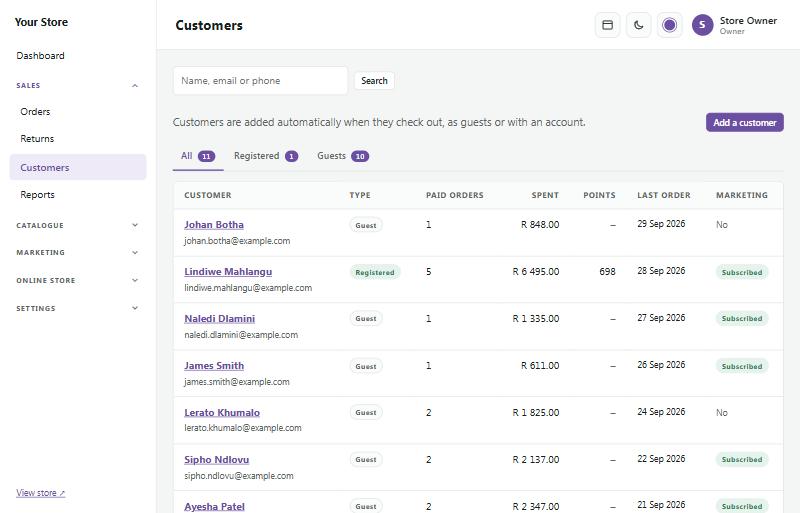
Customers are added automatically when they check out, so you never need to type them in.
A customer's page #
Click a customer's name to see:
- Their paid orders, total spent, average order and last order date.
- Every order, with a Re-order button to start a new order with the same items.
- Their loyalty points, coupons and store credit. Send a personal coupon emails them a discount code that only they can use.
- Whether they're subscribed to marketing emails, and whether they have an account.
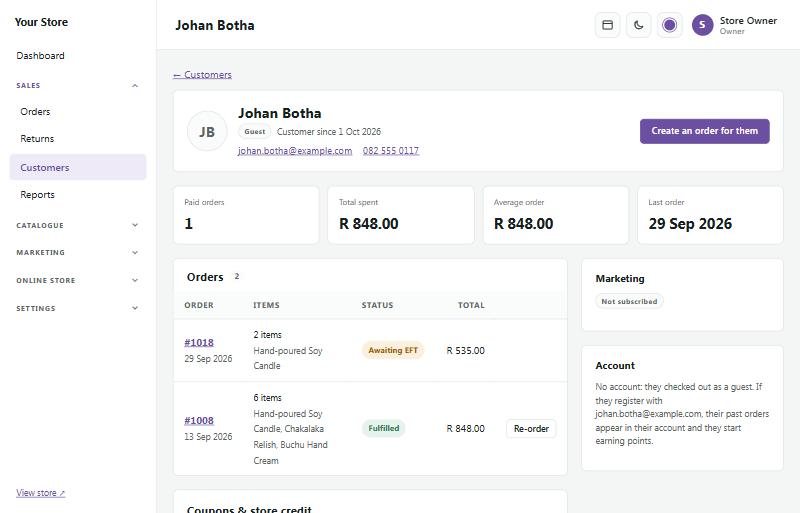
Create an order for them starts a new order with their details filled in.
Addresses #
Each customer has a main address: their billing address and their usual delivery address, with their company and VAT number if they buy for a business. It always goes on their invoices. Registered customers can also keep other delivery addresses (up to 20), each with an optional name like Home or Work.
- Sign in shows two boxes side by side: Sign in for existing customers, and Create an account. When checkout needs an account (guest checkout off), it sends shoppers there, and both ways take them back to checkout with their cart.
- Create an account asks for their name, email, mobile number, password and address. That address is their main address. The mobile number and address are always required. Customers who sign up with Google, Facebook or Apple give their address at their first checkout. They type their email twice, and a meter shows how strong their password is (weak, fair, good or strong): a weak one can't be used. When Marketing → WhatsApp sends order updates, they can tick Send me order updates on WhatsApp, with a WhatsApp number if it isn't their mobile number.
- At checkout, signed-in customers see their details and main address filled in, with Edit. They choose delivery or collection and how to pay. Use a different delivery address lets them pick one of their other delivery addresses or Add a new delivery address, which is saved for next time. The delivery options follow the address chosen.
- With collection the address stays: it's the invoice address. There's no separate billing address to fill in.
- Guests (when guest checkout is on) type one address, used for delivery and the invoice. A guest keeps one address: a later guest order with the same email updates it. Once they create an account they can save other delivery addresses. A guest order never changes the addresses of a customer with an account.
- Customers manage their addresses under My account → Addresses: change the main address, and add, edit or delete other delivery addresses.
- Under My account → WhatsApp updates they switch WhatsApp updates on or off and change their WhatsApp number. Each change is kept with the time: the customer's admin page shows whether WhatsApp updates are on, and the change under Consent history. Ticking or unticking it at checkout saves the choice on the customer too. Staff can switch it on or off and change the number on the customer's admin page: on only when the customer asked (the page asks you to confirm), and every change is logged with your name.
- On a customer's page in admin, Details and main address shows and edits the main (invoice) address. Other delivery addresses lists the others: add, edit or delete. A guest shows their one address only, marked Guest.
Until a customer confirms their email address, only the addresses they typed themselves show in their account and at checkout.
Customer accounts #
Under Online store → Customer accounts you choose whether shoppers can make an account. With an account they see their orders, check out faster and earn loyalty points; shoppers can always check out as guests too.
Order pages: check who is looking (on the same page, off by default). Normally an order page, with its invoice, payment and review pages, opens for anyone who has the private link from the order emails. Switched on, customers with an account must sign in to see their orders (they come straight back to the order afterwards), and guests type the email address they ordered with, once per visit. The shopper who has just placed the order, and your staff, always see it.
Guest checkout (on the same page, on by default) lets shoppers buy without an account. Switch it off to make shoppers sign in or create an account at checkout (their cart is kept), for example for a trade-only or members-only store. It always stays on while customer accounts are off.
You can also offer Sign in with Google, Facebook or Apple. Each needs a short setup in that company's developer site; the page shows the address to copy into their settings.
Helping a customer with their account #
On a customer's page, staff with permission can:
- Mark email as confirmed, if you're sure the email address is theirs.
- Send password reset link.
- Sign in as them to see exactly what they see (for example to help with a stuck order). A bar at the top of the store reminds you, and Back to admin returns you.
Wholesale (trade) prices #
Sell to businesses at trade prices, while everyone else keeps seeing your normal prices. Switch it on under Online store → Wholesale (customer accounts must be on too, because trade buyers sign in).
Setting trade prices
- Store-wide trade discount: for example 20%. Every product without its own trade price is this much cheaper for trade customers.
- A product's own trade price: on the product page under Pricing & stock → Trade price, or in the Trade column for each variant. Leave it empty to use the store-wide discount.
- A trade customer never pays more than the retail price, so if a sale takes a product lower, they get the sale price. Bundles keep their own price.
- Smallest trade order (optional): trade customers can't check out below this goods total.
- Show the retail price crossed out: trade customers see the retail price struck through next to their trade price.
Trade accounts
- Customers apply from their account page (Trade account): business name, VAT number and a short note. You get an email, and the application appears in Customers → Trade with a "waiting" badge.
- On the customer's page, Approve trade account gives them trade prices straight away and emails them. Decline keeps them on retail prices; Back to retail removes an approved account.
- You can give any registered customer a trade account from their page, without an application.
Price tiers
- Besides trade, you can add more levels of special prices, such as Gold, Reseller or Staff, under Online store → Wholesale → Price tiers. Each tier has a % off your retail prices and an optional smallest order.
- Special prices (R): on the product page, each tier gets its own price field (or a column for each variant). Leave it empty to use the tier's % off.
- Put a customer on a tier from their page: under Trade account and prices, choose the tier and click Give these prices (or Change tier). A first approval emails them; moving between tiers doesn't. Back to retail takes them off.
- Deleting a tier puts its customers back on retail prices and removes its special prices.
While signed in, trade customers see a Trade price tag on product cards and product pages, and their cart and checkout use trade prices. Their orders are marked Trade order in admin.
Loyalty points #
Marketing → Loyalty points rewards customers with an account: they earn points on every paid order and use them at checkout as money off.
- Choose how many points customers earn per rand, what a point is worth, and a welcome bonus for signing up.
- Give your points a name (for example "Leaf points").
- Guests see how many points they would earn with an account, a nice reason to sign up.
You can add or take away points for one customer on their page, with a note explaining why.
Privacy and POPIA #
South Africa's privacy law (POPIA) gives customers the right to see and delete their information. On a customer's page:
- Download their data gives you everything your store holds about them, to send to them.
- Erase this customer removes their personal details. Their orders stay for your accounting, without their name and contact details.
Marketing emails are only sent to customers who agreed to them, and every marketing email has an unsubscribe link.