

6Marketing
Ways to bring shoppers in and bring them back: discounts, specials, loyalty points, vouchers, reviews, reminders and pop-ups. You'll find them under Marketing.
Discounts and coupons #
Marketing → Discounts & coupons
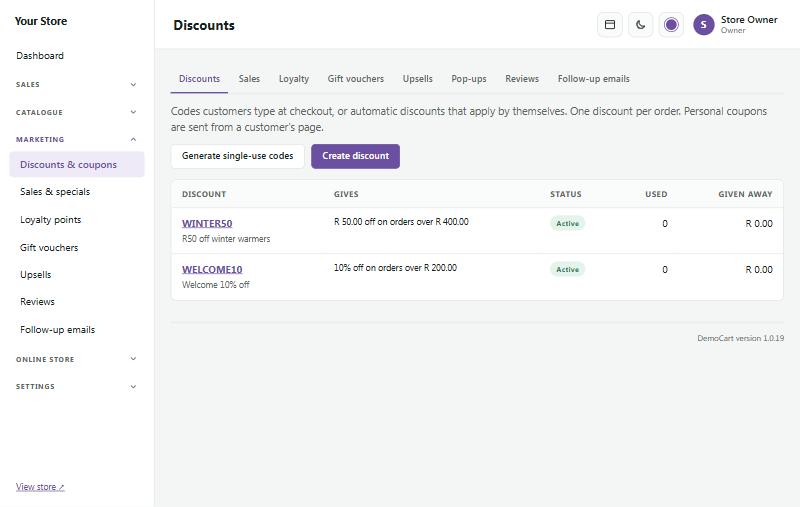
A discount can be a code customers type at checkout (like WELCOME10) or automatic, applying by itself when the cart qualifies. One discount applies per order.
- Press Create discount.
- Choose what it gives: a percentage off, a rand amount off, free delivery, or Buy X, get Y free.
- Choose what it applies to (everything, some categories, some brands or some products) and any rules: a minimum order, an end date, once per customer, or a limit on how many times it can be used.
- Save. The list shows how often each discount was used and how much it gave away.
Buy X, get Y free runs offers like "buy 4, get 1 free". Fill in how many the customer buys and how many they get free. For every X + Y items in the cart that the discount covers, the Y cheapest are free: with "buy 4, get 1 free", 5 items give one free and 10 give two. Different products and sizes count together; tick Same size only to count each size (for example 156g and 400g) on its own. Limit it to a brand or some categories, and give it a start and end date, like any discount. When it's automatic, the cart tells shoppers how many more to add, and product pages show the offer while it runs.
Generate single-use codes makes a batch of unique codes (for example for a competition or a printed flyer), ready to download as a list. To send one customer a personal code, open their page under Customers and press Send a personal coupon.
Sales and specials #
Marketing → Sales & specials puts prices down for a set time and back up again by itself, even while you sleep. Choose the whole store, some categories or some products, and how much off. Shoppers see the old price crossed out and a Sale badge; the cart and checkout use the sale price.
Use it for Black Friday, a winter sale or a weekend special.
Loyalty points #
Marketing → Loyalty points
Customers with an account earn points on every paid order and use them at checkout as money off. Guests see how many points they would earn with an account, which is a nice reason to sign up.
- Tick Program on and give your points a name (for example "Stoep Rands").
- Under Earning, choose how many points customers earn for every so many rand spent (for example 1 point for every R10). Points count on products after discounts (not delivery), once the order is paid. A refund takes the points back.
- Under Using points, choose what each point is worth in rand, the fewest points that can be used, and the most of an order that points may pay for. An example under the settings shows how it works out.
- Press Save. Most points lists your most loyal customers.
Gift vouchers #
Marketing → Gift vouchers
- Give someone a voucher: type the value (and optionally their email and a message) and press Create voucher. Tick Email it to them now to send it straight away.
- Sell gift vouchers in my store: shoppers buy a voucher like any product, choosing from the values you offer. When they've paid, the code is emailed to them, ready to forward.
Customers type the voucher code at checkout. Any balance left over stays on the voucher for next time.
Refer a friend #
Marketing → Refer a friend
"Give R50, get R50". Every customer with an account gets a personal link on their account page, with buttons to share it on WhatsApp, by email or by copying it. A friend who follows the link gets money off their first order, and your customer gets a voucher to say thank you. It's off until you switch it on.
- Tick Refer a friend on.
- Under What the friend gets, choose rand off (for example R50) or a percentage off, and the smallest first order it works on (for example R300). It comes off by itself in the cart for 30 days after they follow the link. "First order" means no paid order before with that email address or account.
- Leave Let it add to a discount code or automatic discount unticked to keep one discount per order: if the shopper types a code, the code is used, and an automatic discount is used only when it gives more. Tick it to give both.
- Under What your customer gets, choose the voucher value, how many months it's valid, and when it's given: as soon as the friend's order is paid, or after it's delivered plus a number of days for returns (recommended: 14). Set the most friends' orders a customer can be rewarded for each month.
- Press Save.
The voucher is store credit (it shows under Gift vouchers) and is emailed with the Refer a friend reward email, which you can change under Online store → Email templates. Cancelled and refunded orders never earn a reward. To stop people referring themselves, the reward isn't offered when the order uses the same email, account, delivery address or internet connection as the customer who shared the link.
The list at the bottom shows every friend's order with its status: Pending (waiting for payment or the returns window), Rewarded or Voided. Press Void to cancel one; if the voucher was already given, it is switched off.
Upsells #
Marketing → Upsells helps shoppers find more to buy:
- Related products: a sliding row under every product. Products you hand-pick on a product's page come first, then best sellers from the same categories.
- Frequently bought together: a set on the product page (this item plus one to three others) with one "Add to cart" button for the set. See below.
- Added to cart pop-up suggestions and a "You might also like" row in the cart.
How "Frequently bought together" works. There's nothing to set up per product: the store picks the items itself, from real orders. It looks at paid, fulfilled and completed orders from the last 12 months and shows the products most often bought in the same order as this one. In Marketing → Upsells you can switch it on or off, change its heading and choose how many extra items to show (1 to 3).
Reviews #
Marketing → Reviews
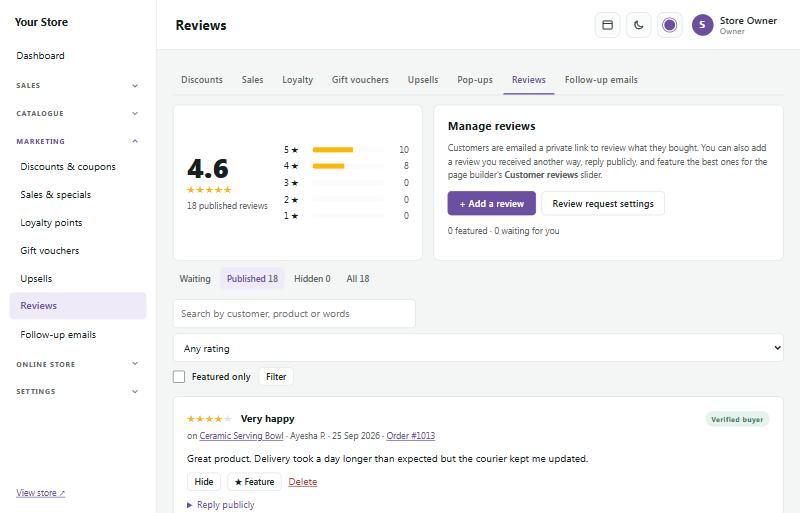
A few days after an order ships, customers are emailed a private link to review what they bought. Reviews from real buyers are marked Verified buyer.
- New reviews wait under Waiting until you Publish them (or tick Publish reviews straight away under Follow-up emails).
- Hide takes a review off the store; Delete removes it for good.
- Reply publicly: your reply is shown under the review on the product page.
- ★ Feature the best reviews to show them in a reviews slider on any page.
- + Add a review adds one you received another way, for example by email.
Photos in reviews
Buyers can add up to three photos (JPG, PNG or WebP) to their review. They're made smaller and saved safely, and you see them on the review under Waiting before you publish it. On the product page they show as small pictures that open full screen, and a With photos button shows only the reviews that have them. Deleting a review deletes its photos too.
Google reviews
The page builder's Google reviews section shows your Google rating and reviews in a choice of styles. Type reviews into the section yourself, or fetch them from Google automatically: at the bottom of the Reviews page, add your Place ID and a Google API key (the page explains where to find them). They then refresh once a day.
Follow-up emails #
Marketing → Follow-up emails sends helpful emails automatically:
- Cart reminders: when a shopper types their email at checkout but doesn't finish, they get one friendly reminder with a link that brings their cart back. Tick Send reminders, choose how long to wait, and optionally Include a discount code to tempt them.
- Review requests: tick Ask customers for a review after their order ships and choose how many days to wait.
The figures at the top show the reminders sent in the last 30 days, how many turned into orders, and the sales they recovered.
Where to find your abandoned carts
Open Marketing → Follow-up emails. This one page is where abandoned carts show:
- The figures at the top count the cart reminders sent in the last 30 days, how many of those carts turned into orders, and the recovered sales (only orders that are paid, fulfilled or completed).
- The list at the bottom shows checkouts from the last 14 days where the shopper typed their email, newest first (up to 50). For each you see the Shopper (their email), Last active, the Cart value and a Status: In progress (they may still be busy), Reminded (with how long ago the reminder went) or Ordered (a link to the order).
Only shoppers who got as far as typing their email at checkout appear here, and only carts that still have items in them. A shopper who leaves before that isn't listed, because the store doesn't know who they are. To see carts that are open right now, use Sales → Who's online, which shows what is in each shopper's cart and the value of all open carts.
A reminder goes out once the cart has been idle for the time you chose (and never for a cart older than 7 days). Between 20:00 and 08:00 reminders wait for the morning. Nothing is sent to someone who unsubscribed or who has ordered since. To change the wording of the email, use Cart reminder under Online store → Email templates. The page is open to staff who may manage settings.
Stock and price alerts #
Shoppers can ask to be told when something they want is available or cheaper:
- Email me when it's back: when the option a shopper picks is sold out, a box under Add to cart asks for their email. As soon as you restock it (or tick Keep selling when out of stock), they get one email with the picture, price and a link.
- Tell me if the price drops: a small link on products that are in stock. The shopper gets one email if the price falls by at least the percentage you choose (5% unless you change it), for example in a sale. It isn't shown in showcase mode or on "price on request" products.
Switch each kind on or off, and choose the percentage, under Online store → Store features. Both are on to start with, because only people who asked are emailed. Change the emails' wording under Online store → Email templates (Back-in-stock alert and Price-drop alert).
Marketing → Stock & price alerts lists the Most wanted products first, with how many people are waiting for each option: handy when you decide what to reorder. The product's edit page shows the same count under Pricing & stock. Email addresses are partly hidden and can't be exported, because shoppers gave them for one alert, not for marketing.
Each alert is emailed once, then it's done. Every email has a link to stop the shopper's other alerts. Customer data exports and erasures (POPIA) include their alerts.
Product feeds for Google and Facebook #
Marketing → Product feeds lists everything you sell at a web address of its own, so your products can show free on Google Shopping and in your Facebook and Instagram shop, where you can also tag them in posts. Google and Meta read the feed by themselves once a day, so changes to prices and stock follow without any work.
- Tick Google Merchant Center feed and/or Meta (Facebook and Instagram) feed and press Save product feeds.
- Press Copy next to the feed's address.
- Open How to connect Google Merchant Center or How to connect Meta Commerce Manager on the same page and follow the steps: you paste the address into Google or Meta and choose a daily update.
Each size or colour is listed on its own, with its price, a sale price while it's on special, stock, pictures and your categories. Drafts, products marked "price on request" and products without a picture are left out, and in showcase mode the feeds are empty.
- Google product category: optional. The closest category from Google's list (its number or full name), for all your products.
- Brand for products without one: Google and Meta ask for a brand. Products with a brand use their own; the rest use this, or your store name.
- List sold-out items as "out of stock": keeps them on file at Google and Meta until they're back in stock. Untick to leave them out.
There is also a Pinterest catalog feed in the same format as Google's, at its own address. Pinterest turns it into Product Pins with price and stock.
Sell on BobShop #
Marketing → Sell on BobShop lists your products on BobShop (bobshop.co.za, the marketplace that used to be bidorbuy). Your store makes a private web address with all your products, prices, stock and pictures, and BobShop reads it by itself about once a day: new products are listed as Buy Now items, prices and stock are updated, and products you stop selling are taken off.
- Register on bobshop.co.za and become a seller.
- Choose your settings, tick BobShop feed and press Save BobShop settings. Your private feed address appears.
- Press Test the feed to see your first 25 listings as BobShop will read them.
- Email BobShop's category team (categoryadmin@bobshop.co.za), say you'd like to list your store with a product feed, and paste the feed address. They check it, match your categories to theirs and set up your delivery options with you.
Each size or colour is listed on its own. Drafts, products marked "price on request" and products without a picture are left out, and in showcase mode the feed is empty.
- Which products: all of them, or only some categories (and the categories inside them). Under Leave these out, a product's web address leaves out the whole product and a SKU leaves out one size or colour.
- Price on BobShop: add a percentage (for example to cover BobShop's success fee) and round the result. Prices are sent with VAT included; sale items show the normal price as the "was" price.
- Stock: Keep back from BobShop holds a few items back, because BobShop only reads your stock about once a day. Choose how many to show for products whose stock you don't count, and whether sold-out items are sent with quantity 0 or left out.
- Listing details: the condition (new, second-hand or refurbished), a shipping class name BobShop links to your delivery costs, and whether to send all pictures or only the main one.
- Add to every description: for example your delivery times and returns. Links in your descriptions are left out on BobShop.
- BobShop categories: optional. BobShop gets your own category names and matches them; if BobShop gives you their category names or numbers, type them next to yours.
Orders placed on BobShop are paid to BobShop and handled in your BobShop seller account, not in your store. BobShop pays you out after its fees.
Sell on Takealot and Amazon.co.za #
Marketing → Takealot & Amazon lists your products on Takealot and Amazon.co.za with one stock count. The store sends each listed product's stock and price to the marketplace when they change (a few minutes later), and all of them again once a day. Marketplace orders come in as orders in your store, marked Takealot or Amazon.co.za, and take the stock, so the website and the marketplaces never sell the same item twice. Each marketplace is switched on separately and starts off. This page needs Store setup.
What each marketplace needs from you
- Takealot: an approved Takealot Marketplace seller account, and its Seller API key. The account owner makes the key in the Takealot Seller Portal under API Integrations → Seller API → Authentication. Takealot allows one key at a time: a new key stops the old one.
- Amazon.co.za: a professional Amazon seller account with Amazon.co.za, and a free registration as a private developer in Seller Central (Develop Apps), asking for the Product Listing and Inventory and Order Tracking roles. Amazon reviews the request. Then make an app for your own account and copy its LWA client ID and client secret; press Authorize app (as the account's primary user) to get a refresh token; and find your Seller ID (merchant token) under Settings → Account info.
- On both, the products must already be listed: make your offers in the Takealot Seller Portal or Amazon Seller Central as usual, with the same SKU as in your store. The store keeps their stock and price up to date; it doesn't create new listings.
Connect and switch on
- Paste the key (Takealot) or the Seller ID, client ID, client secret and refresh token (Amazon) and press Save. They are stored encrypted and never shown again.
- Press Test connection. For Takealot the test also finds your warehouses: choose Your warehouse on Takealot, the one whose leadtime stock is your store's stock.
- Set the Price adjustment (%) (for example 15 to cover the marketplace's fees), Rounding and Stock to keep back (for example 2: when you have 10, the marketplace offers 8). Takealot prices are whole rands, so cents are always rounded up.
- Tick Sync with Takealot (or Amazon.co.za) and press Save. Only orders from now on come in, never older ones.
- Press Choose products, tick the products (each size or colour is its own line) and press List on Takealot (or Amazon.co.za). Leave the marketplace SKU empty to use your store's SKU, or type the SKU the marketplace uses. Send now sends the ticked products straight away; Stop listing sets their stock on the marketplace to 0 and stops syncing them.
Orders and stock
- New marketplace orders come in every 10 minutes (or press Sync now). They are paid on the marketplace, so they arrive as paid orders. The same order is never brought in twice.
- The store never emails marketplace customers: Takealot and Amazon keep them up to date. No customer email address is kept for these orders.
- Takealot: Takealot's API doesn't say whether a sale is a leadtime order or came from stock you sent to Takealot's DC, so choose Where your Takealot sales ship from. Leadtime orders take your stock and wait for you to send them; DC orders are complete straight away.
- Amazon: orders you ship yourself take your stock. Fulfilled by Amazon (FBA) orders are complete straight away. The customer's address is in Seller Central.
- Sales from Takealot's DC or FBA don't change your stock here, unless you tick that they should (when you still count that stock in your store).
- An order cancelled on the marketplace before you send it is marked refunded and its stock goes back.
- A sold item's new stock goes out to the other marketplace and your website shows it straight away.
Sending marketplace orders
- Amazon: change the order to Fulfilled with the courier and tracking number. The store confirms the shipment to Amazon by itself, or press Confirm shipment to Amazon now on the order's page.
- Takealot: deliver leadtime orders to the Takealot DC on a shipment you create in the Takealot Seller Portal (Takealot's API can't do that), then mark the order as fulfilled and press Done in the seller portal.
The Sync log at the bottom of the page shows what was sent and brought in; Problems shows only what needs you. A listing with a problem (for example no offer with that SKU) shows it on its row and is tried again later. If a marketplace asks the store to slow down, syncing pauses until the time it gives: nothing is lost. If a key is refused, syncing stops until you save it again and press Test connection.
WhatsApp for orders #
Marketing → WhatsApp sends order updates and cart reminders by WhatsApp, and adds a Chat to order button to product pages. Messages only go to shoppers who tick Send me order updates on WhatsApp at checkout (it is never ticked for them). Their choice is saved with the time, and they can switch it off in their account or by replying STOP. This page needs Store setup. Shoppers can also tick it when they Create an account (kept with the source registration), and give a WhatsApp number other than their mobile number there or under My account → WhatsApp updates. WhatsApp messages go as well as the emails, never instead of them. Order status update (off until you switch it on and its template is approved) also sends your own order statuses and the updates you email from the order page.
Connect WhatsApp
- You need a Meta Business account and a phone number for the store that isn't already used in the WhatsApp app. At developers.facebook.com, create a Business app, add WhatsApp, and add your number under WhatsApp → API Setup.
- Copy the Phone number ID and WhatsApp Business Account ID, and make a permanent access token (a System user in Business Settings). Paste them under 1. Connect WhatsApp, press Save, then Test connection. Keys are stored encrypted and never shown again.
- Create your message templates in WhatsApp Manager, using the suggested wording on the page. Every template must be approved by Meta before it can be sent. Order messages are Utility templates; the cart reminder is a Marketing template.
- For delivery ticks and customer replies, add the Callback URL and Verify token shown on the page to your app's WhatsApp webhook, subscribe to messages, and paste the app's App secret.
You can also send through Twilio or Clickatell instead: choose them under Send through. For Twilio, the template boxes take each template's Content SID (HX…).
Messages and cart reminders
Tick Send WhatsApp messages, then choose which messages go, each with its template name and language: Order confirmed, Payment received (EFT), On its way (with the tracking link), Ready for collection (when you send the "ready to collect" update) and Delivered. They go with the same actions as the customer's emails, and only when Email the customer is ticked.
Cart reminder sends one WhatsApp, with the link that brings the cart back (and the discount code from Follow-up emails, if you choose one), to opted-in shoppers who didn't finish. None is sent once the shopper has ordered, and none between 20:00 and 08:00: they wait for the morning. Cart reminder emails wait for the morning too.
On the order page
The WhatsApp panel shows whether the customer opted in, every message with its status (sent, delivered, read or not sent, with the reason) and the customer's own messages. Send WhatsApp sends one of your approved templates again, or your own words, but only within 24 hours of the customer's last WhatsApp to you: that is WhatsApp's rule.
Pop-ups #
Online store → Pop-ups shows notices and offers in a box over the page, for example "Welcome! Here's 10% off" with a newsletter sign-up.
- Choose when it opens (after a few seconds, when the visitor scrolls, or when they're about to leave), on which pages, and how often (once per visit, once a week…).
- Schedule it between two dates for a promotion.
- Shoppers see at most one pop-up per page.
Ticker #
Online store → Ticker shows short messages that scroll across the top or bottom of your store, like "Free delivery over R750" or "Order before 12:00 for same-day dispatch". Shoppers can pause it or close it.
Search engines and redirects #
Online store → Search & redirects
- Let Google and other search engines list my store: switch this on when you launch. While it's off, search engines are kept out.
- Each product and page has its own Search listing (title and description) on its edit page; product pages also tell Google their price and stock.
- Redirects send visitors from an old address to a new one, for example after moving from another website, so old links and search results keep working.
- Tidy picture names gives pictures uploaded before version 1.4.2 (random names like `3fa9c1e0….jpg`) descriptive names, like `volta-pro-15-laptop-silver-a3f9.jpg`, which help Google Images and AI search. Press Check picture names to see the new names first; nothing changes until you press Rename. A backup is made first, every page that uses a picture is updated, and old picture addresses keep working. New uploads are named this way by themselves.
Social selling: Facebook, Instagram, WhatsApp and Pinterest #
Marketing → Social selling is a step-by-step checklist for selling on social media. Each step explains what it does in plain words and links to the right page at Meta or Pinterest. Ticks turn green by themselves as each part starts working. Steps marked In Meta or In Pinterest are done on their websites. You use your own business accounts and paste in codes: your store never asks for your Facebook or Pinterest password.
For Facebook and Instagram:
For Pinterest: switch on the Pinterest catalog feed, claim your website with Pinterest's verification tag, add your Pinterest tag ID, and optionally connect the Pinterest Conversions API with your ad account ID and a conversion access token.
What the Conversions API does. Ad blockers and some browsers stop the pixel, so ads look like they sell less than they do. Your store's server then sends the same events straight to Meta or Pinterest: product views, add to cart, checkout started (Meta) and purchases, and page views if you tick Also send every page view. Each event has the same ID in the browser and from the server, so it is counted once. Sending happens after the page has loaded, so shoppers never wait, and an event that doesn't get through is tried again later.
Which posts and ads sell? Reports → Social sales shows visits, visits that added to the cart, orders, conversion and paid sales for each source: Facebook, Instagram, Pinterest, TikTok, X, WhatsApp, Google, direct and other sites. Choose the period at the top; on a phone each source shows as a card. The source comes from the link's tag (add `?utm_source=instagram` to the link in your bio, or `?utm_source=whatsapp` to links you send), an ad's click code, or the website that sent the shopper. Links opened in apps often arrive without one and count as direct, so tag the links you post. Robots and your staff aren't counted, and nothing about the shopper is kept.